Official Website of the Commonwealth of Pennsylvania
Purpose: Use this guide for assistance with creating a new login account in the Business One-Stop Shop Hub. NOTE: You must create an account in the Business One-Stop Shop Hub to login to the Department of State’s Business Filing Services system.
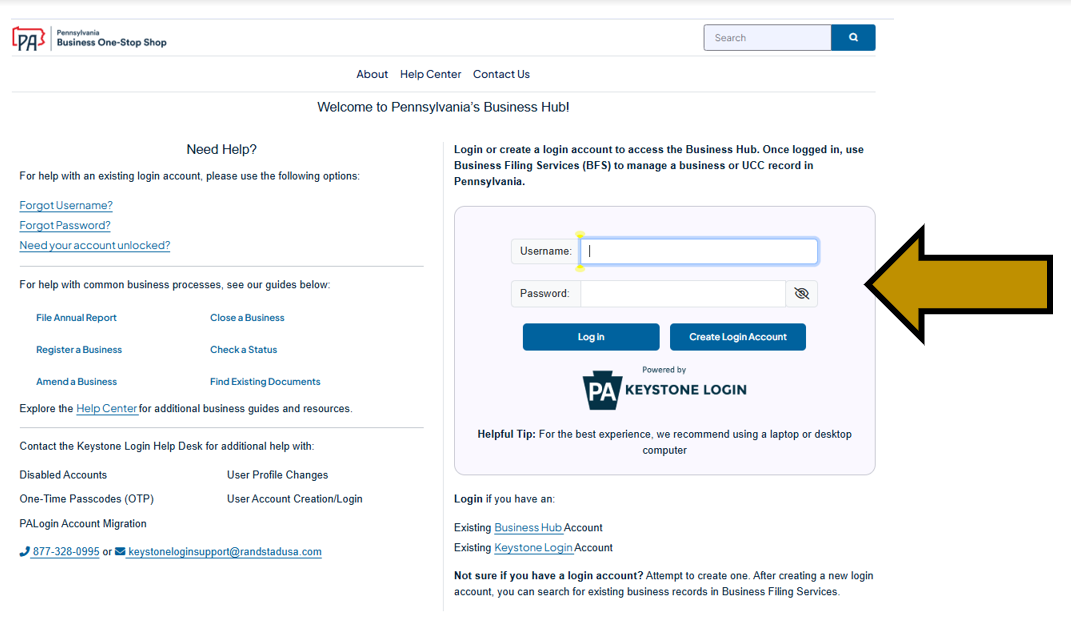
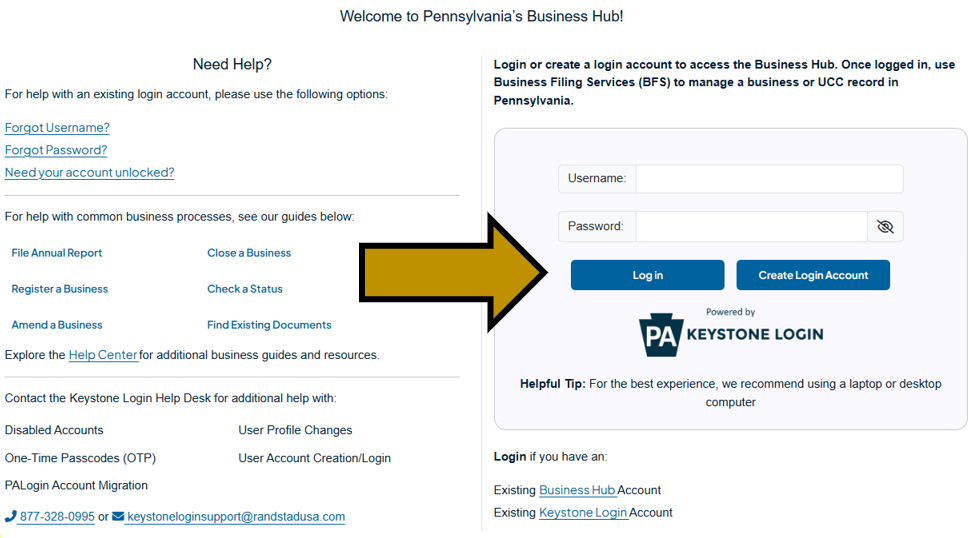
Step 1: Go to https://hub.business.pa.gov. Click the Create Login Account button. If you attempt to create a login account and you receive a message that there is an account already associated with your email, you may have an existing Keystone Login from another Commonwealth system. In that case, use the Forgot Username and Forgot Password links to recover your login credentials.
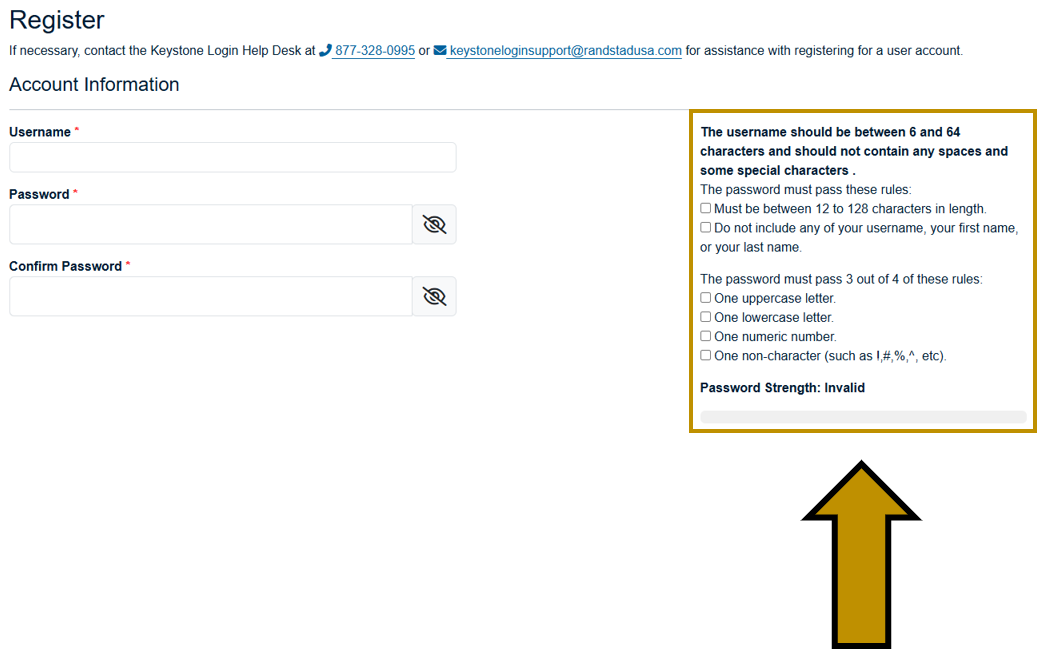
Step 2: Complete the required fields. The username should be between 6 and 64 characters and CANNOT contain any spaces or certain special characters. The password must be between 12 and 128 characters in length and CANNOT contain any part of your username or your first and last name. The password must also pass three of the four following rules: one uppercase letter, one lowercase letter, one number, and one special character (e.g., .: !,#,%,^, etc.).
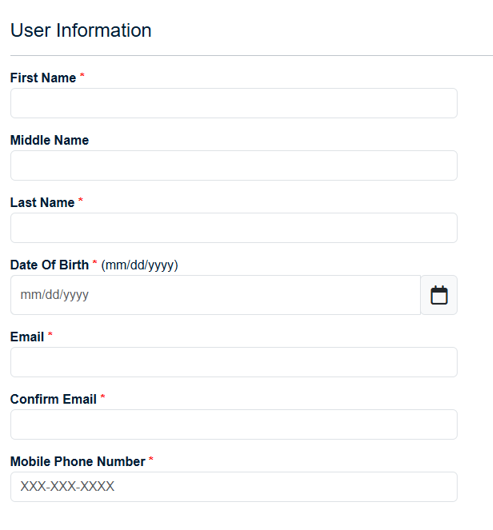
Step 3: Add the required User Information.
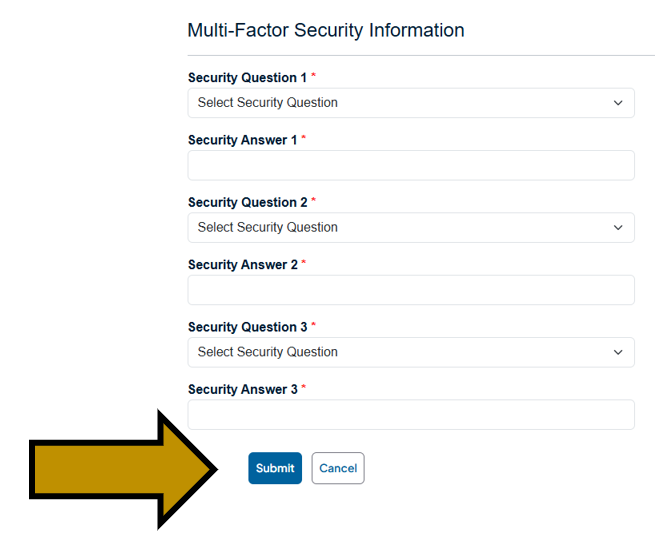
Step 4: Select three different security questions. Each question must have a different answer. Click the Submit button.
Step 5: After successfully creating your account, you will be directed back to the Login screen. Enter your newly created username and password. Click the Log in button.
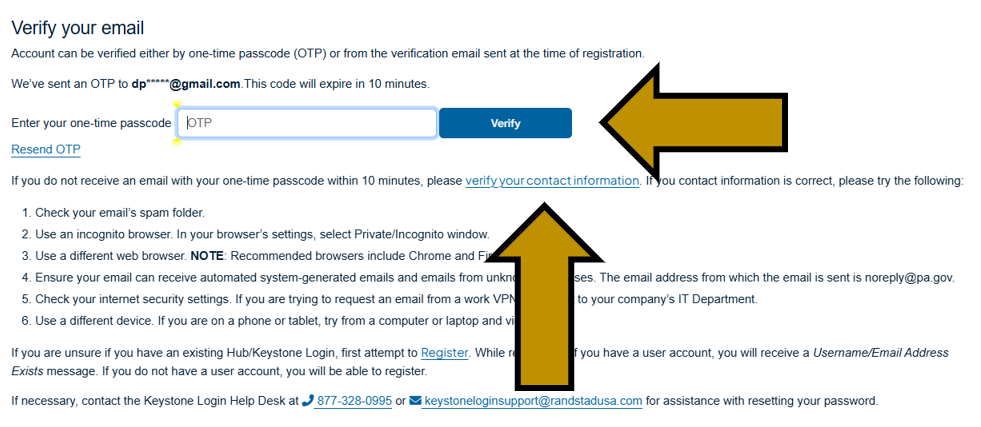
Step 6: Verify your email by entering the one-time passcode sent to the email address used to register. Click the Verify button. Use the verify your contact information link if you have trouble receiving your one-time passcode. NOTE: You can also click the link in the PA Business One-Stop Hub welcome email.
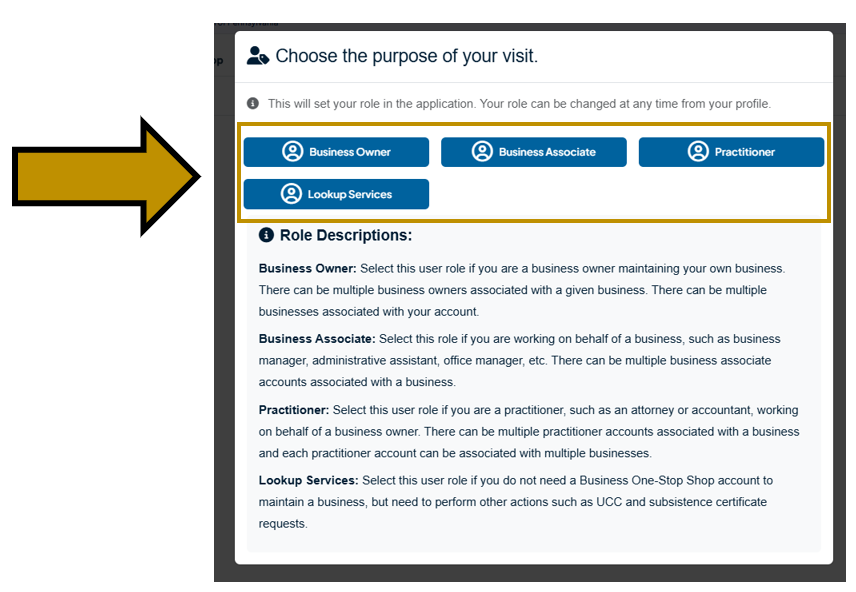
Step 7: You now have access to the Business Hub. Select the purpose of your visit by clicking the proper button. NOTE: You can change your role at any time in My Profile.
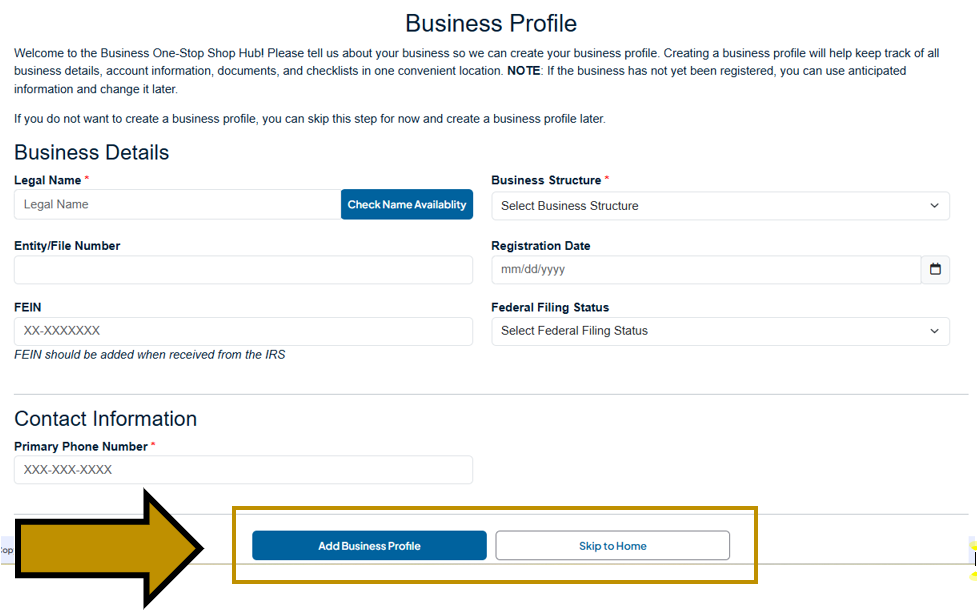
Step 8: After selecting your role, you will be prompted to add information about a new or existing business. If you do not want to create a business profile at this time, click the Skip to Home button. NOTE: If you are logging in for the first time from a business checklist, information may be pre-populated. After providing the required information, click the Add Business Profile button to create a business profile.
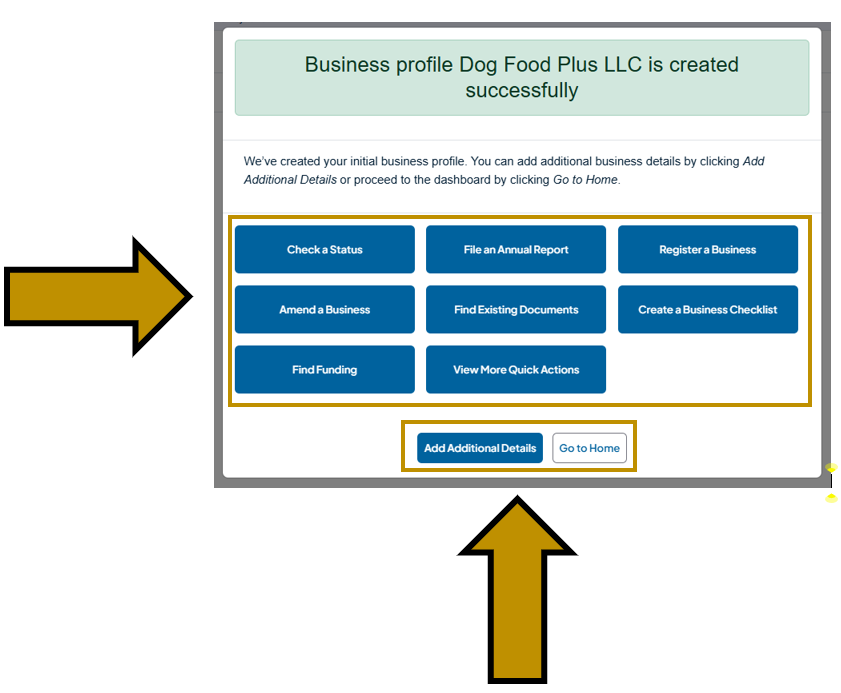
Step 9: You have successfully created your login account and business profile! NOTE: Creating a business profile does not register your business in Pennsylvania. You can use the various quick action buttons to complete common business processes, click the Add Additional Details button to continue adding more business information, or click Go to Home to go to the Business Hub homepage.
Revised 3/12/2026