Official Website of the Commonwealth of Pennsylvania

Help Guides And Videos

Help Guides - Purchase Business Documents in BFS

Purpose: Use this guide to purchase previously filed documents (e.g., formation documents, amendments, annual reports, subsistence certificates/certificates of registration, also known as good standing, etc.) in Business Filing Services.


Step 1:  Go to https://hub.business.pa.gov. Enter your username and password in the appropriate form fields. Click the Log In button. New users should click the Create Login Account button.  For additional assistance with creating a new login account in the Hub, refer to the Create a Login Account in the Hub help guide. NOTE: The Business Hub uses Keystone Login to manage user login accounts. If you have an existing Keystone Login from any Commonwealth system associated with your email address, use your existing information to log in.
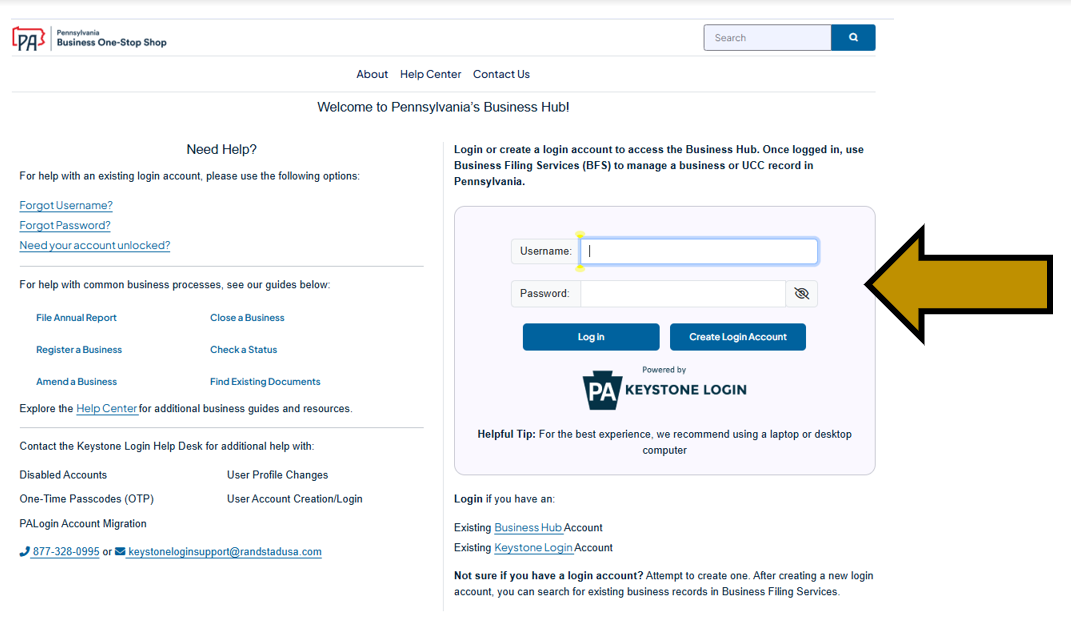
Arrow pointing to the username and password fields on the login page of the Business One-Stop Shop Hub.


Step 2: Scroll down and under Quick Navigation click the Find Existing Documents link.
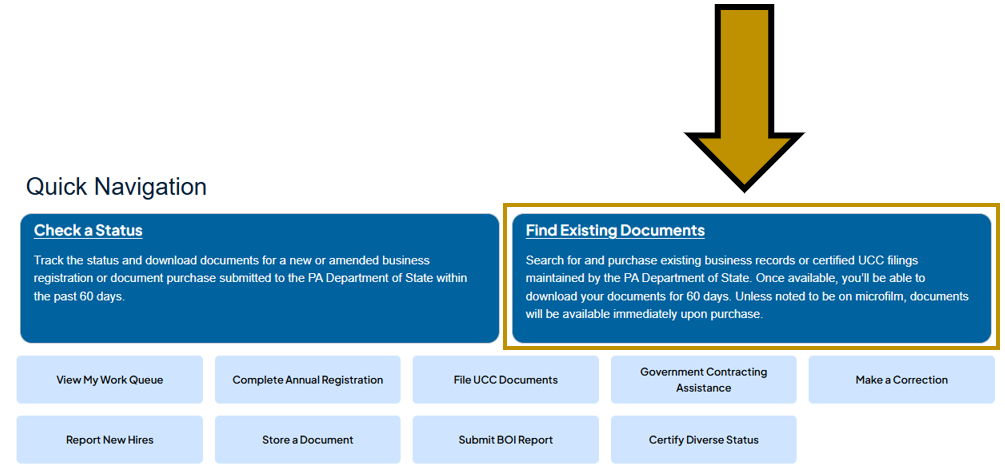
Arrow pointing to the Find Existing Documents panel under My Business(es) on the Business One-Stop Shop Homepage.


Step 3: At the bottom, select the type of document you would like to purchase. For the purposes of this guide, click the Business Documents button. NOTE: This will open in a separate tab in your browser.
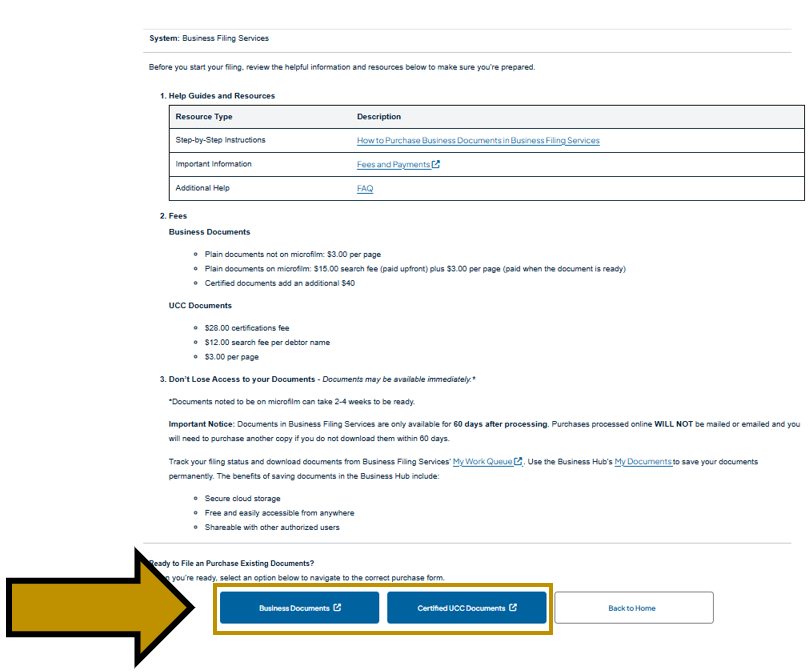
Arrow pointing to the Business Documents and Certified UCC Documents buttons on the Find Existing Documents landing page within the Business One-Stop Shop Hub.

  • Click Business Documents to purchase plain or certified formation documents, amendments, reports, subsistence certificates, and any other document submitted to the PA Department of State.
  • Click Certified UCC Documents to purchase certified Uniform Commercial Code documents, including financing statements, amendments, and information changes.


Step 4: Type in your business name and click the Search icon.

Arrow pointing to the Search field in Business Filing Services.


Step 5: Click your business name in the search results.

Arrow pointing to search results in Business Filing Services.


Step 6: Click the Request Certificate button.

Arrow pointing to the Request Certificate option in Business Filing Services.


Step 7: Click the Next Step button.

Arrow pointing to the Next Step button in Business Filing Services.


Step 8: Select the type of document you wish to purchase in the dropdown menu, follow the screen prompts, and click the Next Step button.

  • Index Report (Plain and Certified) *: Used to obtain a listing of all filings previously submitted. It does not display any additional data, such as organizer names or business details. If seeking a copy of the initial formation documents, signatures, and/or names of organizers, complete a Copy Request. The fee for a plain copy is $15.
  • Subsistence Certificate: Often referred to as a Good Standing Certificate. For foreign registered entities the Subsistence Certificate is referred to as a Certificate of Registration. The fee is $40.
  • Engrossed Certificate: Used to create a custom-worded, Secretary of State stamped certificate, if the other options aren’t applicable. The fee is $125.
  • Copy Request (Plain and Certified)*: Used to purchase an "Initial Filing," which is the business's inital formation document.  This includes Articles of Incorporation, Certificate of Organization, Fictitious Name Registration, and more, depending on the business structure type.  You can also purchase amendments and any other documents the business previously submitted to the Depatment of State. After selecting Copy Request in the dropdown menu, you must select whether you want plain or certified copies and, while leaving the white search box empty, click the blue Search button to view all available documents. In the resulting list, click the document(s) you wish to purchase and click the Save and Close button.

*You have the option to purhcase a plain or certified copy. A plain copy can be used for most purposes unless a certified copy is specifically requested. A certified copy is a plain copy that includes a certification letter digitally stamped and signed by the Secretary of State. Certified copy requests include an additional $40 fee.  

Arrow pointing to the Request Type in Business Filing Services.


Step 9: Review the fees for your order and click the Next Step button.

Arrow pointing to the Next Step button in Business Filing Services.


Step 10: Click the Submit button to submit your request online.

Arrow pointing to the Submit button in Business Filing Services.


Step 11: Click the Pay with credit or debit card button to proceed to the cart and finish your order.
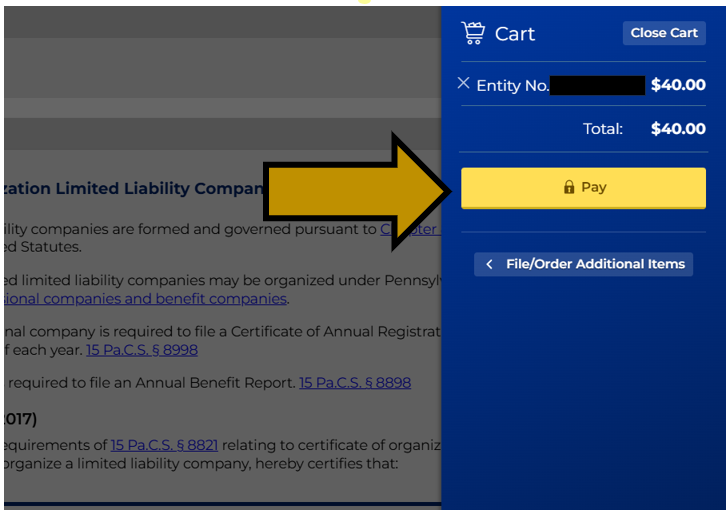
Arrow pointing to the Pay button in the cart in Business Filing Services.


Step 12: Once your purchase is complete, use My Work Queue to view your order status and access your document(s) when available. To do so, start by clicking the My Work Queue menu option on the left.

Arrow pointing to the My Work Queue tab in Business Filing Services.


Step 13: Click the Orders tab at the top to view your pending and available orders.
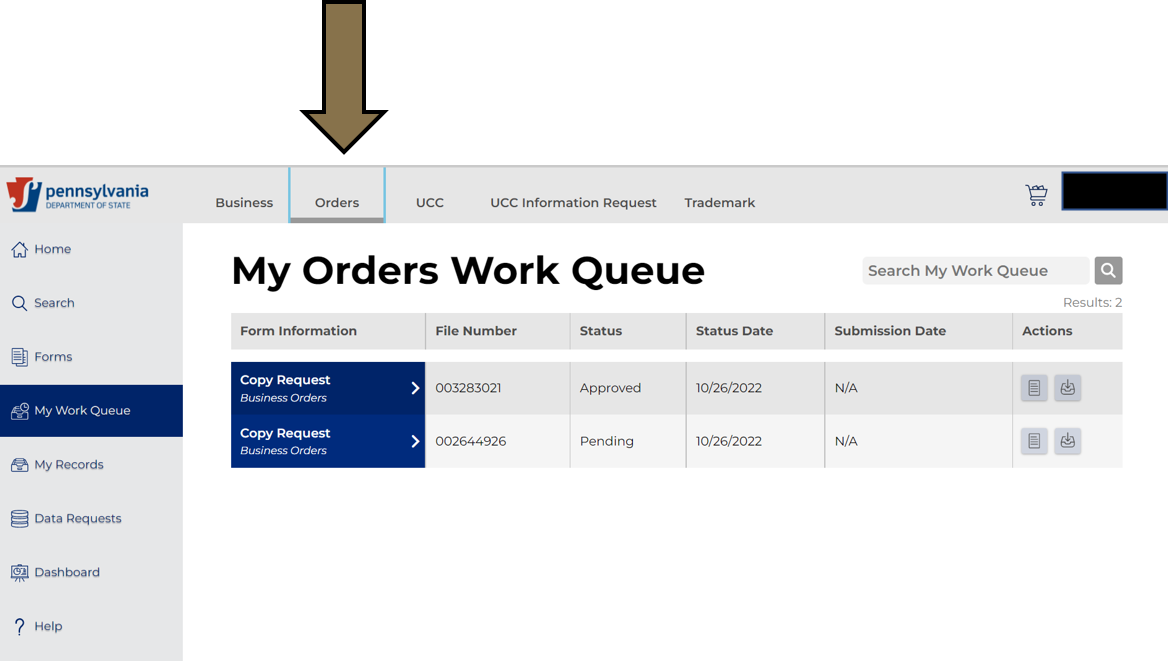
Arrow pointing to the Orders tab in Business Filing Services.


Step 14: Once the status is approved, click the View Downloads button.

Arrow pointing to the View Downloads tab in Business Filing Services.


Step 15: Finally, click the Results.zip button to download and open your document(s).
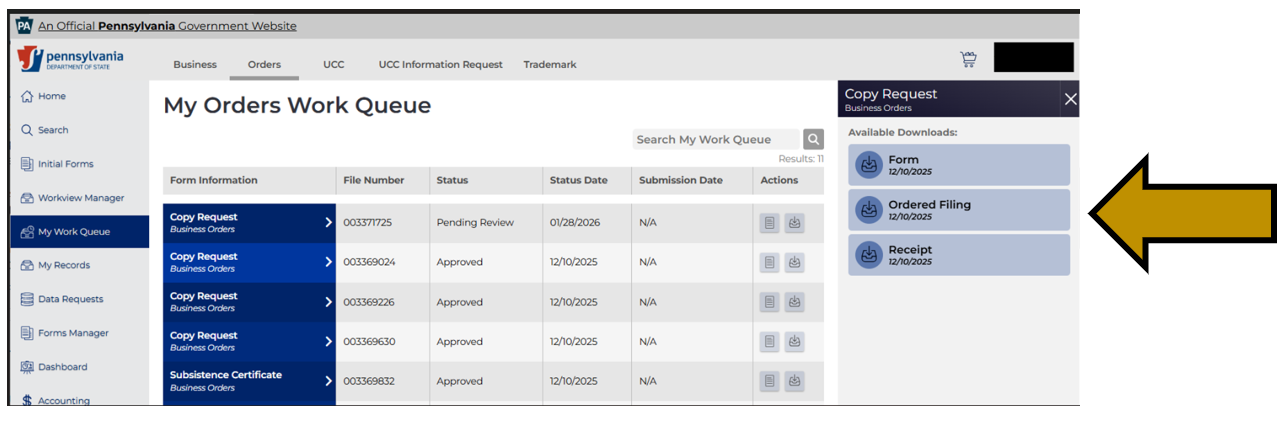
Arrow pointing to the Results.zip option in Business Filing Services.

Revised 12/22/2025