Official Website of the Commonwealth of Pennsylvania
Purpose: Use this guide to check the status of and download documents for a recent transaction in Business Filing Services (e.g., New/Amended Filings, Document Order Requests, UCC Filings, UCC Information Requests, and Trademarks).
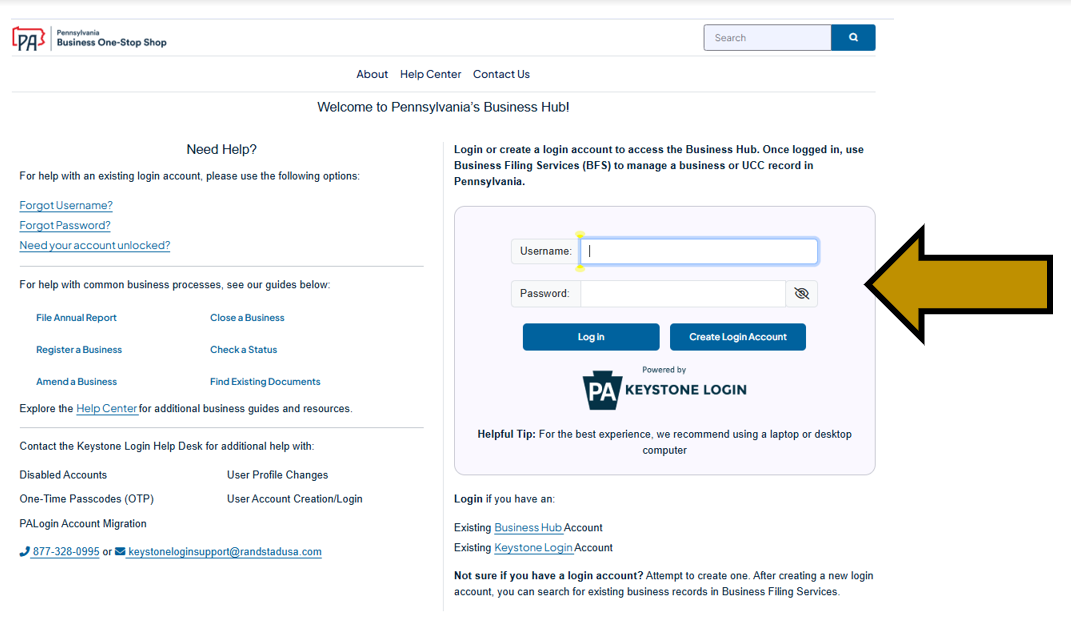
Step 1: Go to https://hub.business.pa.gov. Enter your username and password in the appropriate form fields. Click the Log In button. New users should click the Create Login Account button. For additional assistance with creating a new login account in the Hub, refer to the Create a Login Account in the Hub help guide. NOTE: The Business Hub uses Keystone Login to manage user login accounts. If you have an existing Keystone Login from any Commonwealth system associated with your email address, use your existing information to log in.
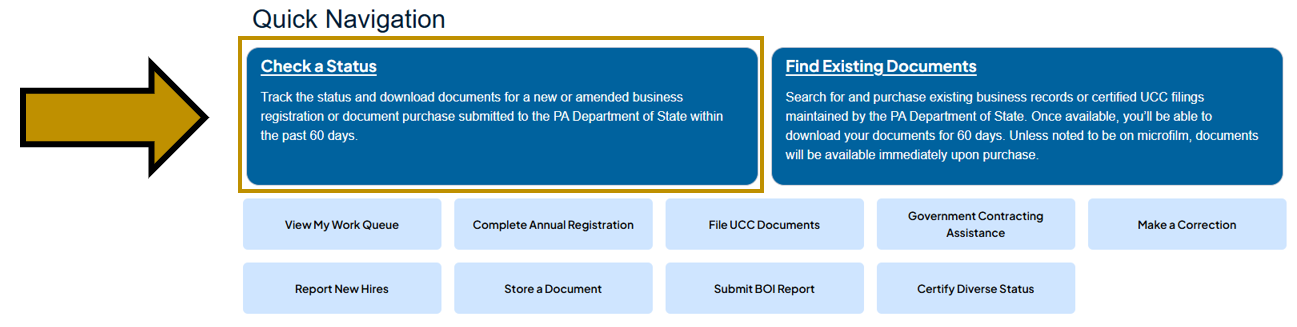
Step 2: Scroll down and under Quick Navigation click the Check a Status link.
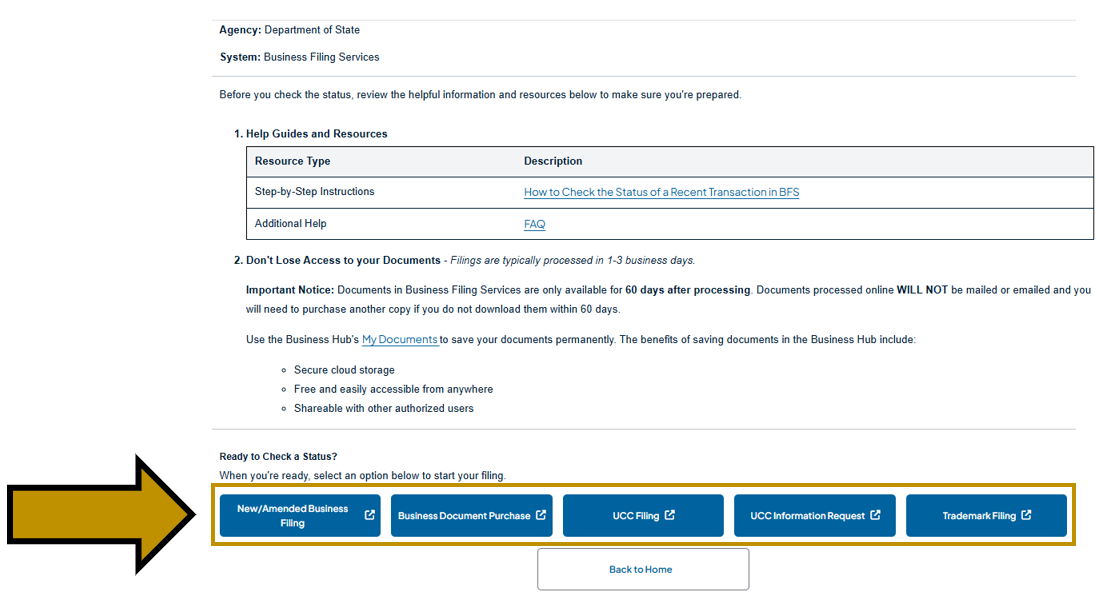
Step 3: At the bottom, select the type of status you would like to check. NOTE: This will open in a separate tab in your browser.
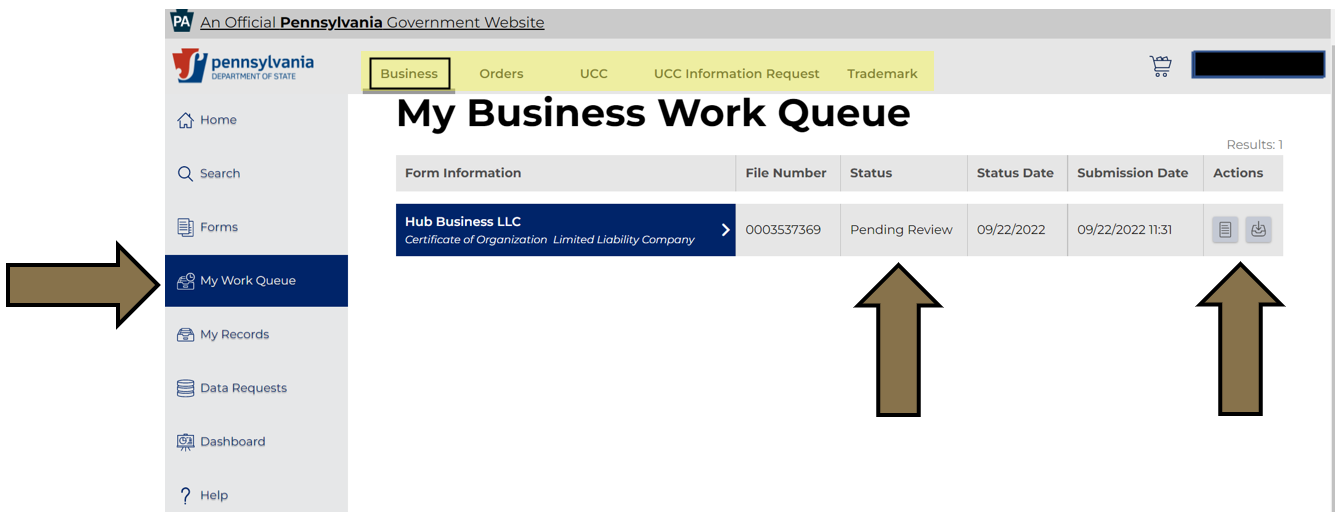
Step 4: View your status in My Work Queue. The example below is a New Business Filing that is, “Pending Review.” You can check additional Work Queues using the menu in the grey area at the top of the page (highlighted in yellow below). When the filing/purchase is approved, you can download the documents by clicking the View Downloads button in the Actions column. NOTE: Documents in the Work Queue will only be available for 60 days. If copies are needed beyond 60 days, they can be purchased for a fee. For additional assistance with purchasing documents, refer to the Purchase Business Documents in BF help guide.
Revised 1/14/2026