Official Website of the Commonwealth of Pennsylvania
Purpose: Use this guide to request access to a business record and find the required documents to amend or close an existing business in Pennsylvania (e.g., Change of Registered Office, Business Name Change, Certificate of Termination, Articles of Dissolution, Voluntary Termination/Dissolution, etc.).
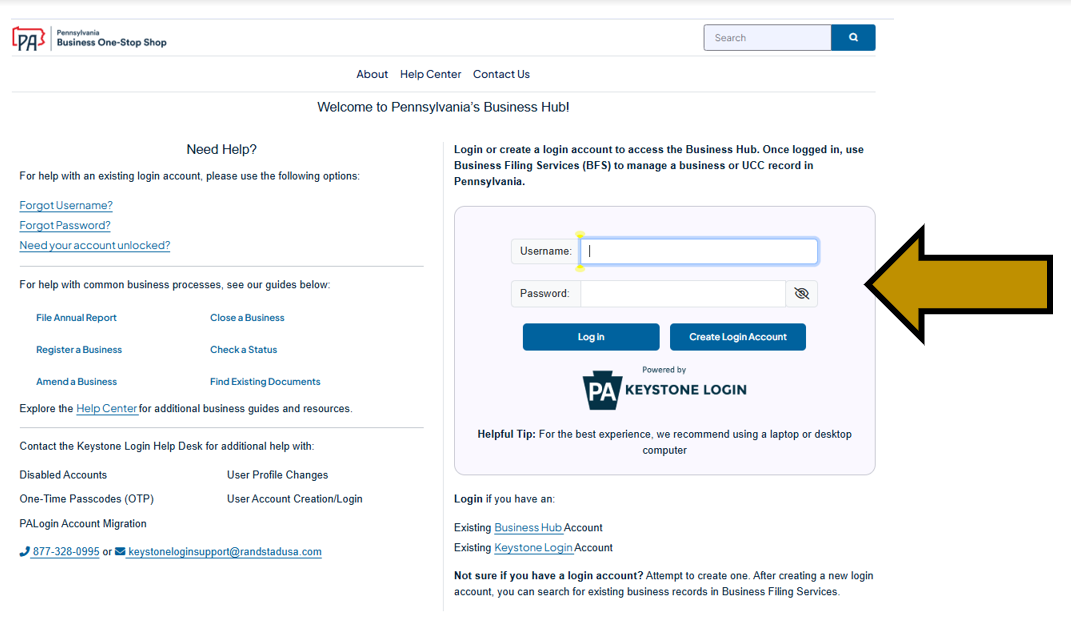
Step 1: Go to https://hub.business.pa.gov. Enter your username and password in the appropriate form fields. Click the Log In button. New users should click the Create Login Account button. For additional assistance with creating a new login account in the Hub, refer to the Create a Login Account in the Hub help guide. NOTE: The Business Hub uses Keystone Login to manage user login accounts. If you have an existing Keystone Login from any Commonwealth system associated with your email address, use your existing information to log in.
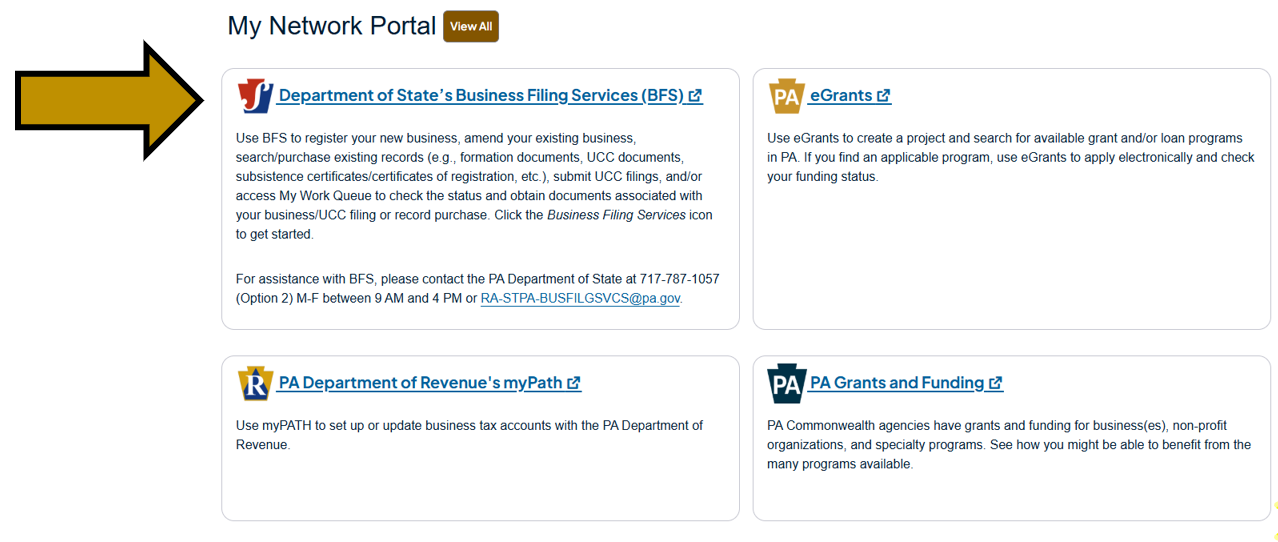
Step 2: Scroll down and under My Network Portal click the Department of State's Business Filing Services (BFS) link. NOTE: This will open in a separate tab.
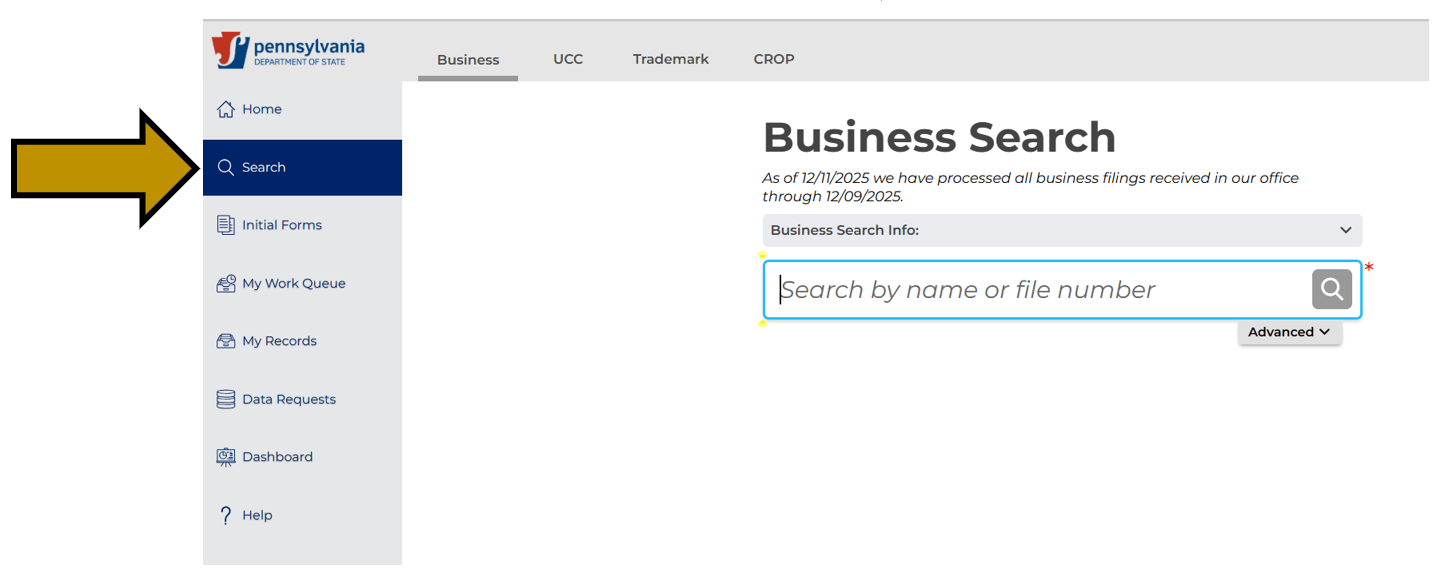
Step 3: On the left, click the Search option.
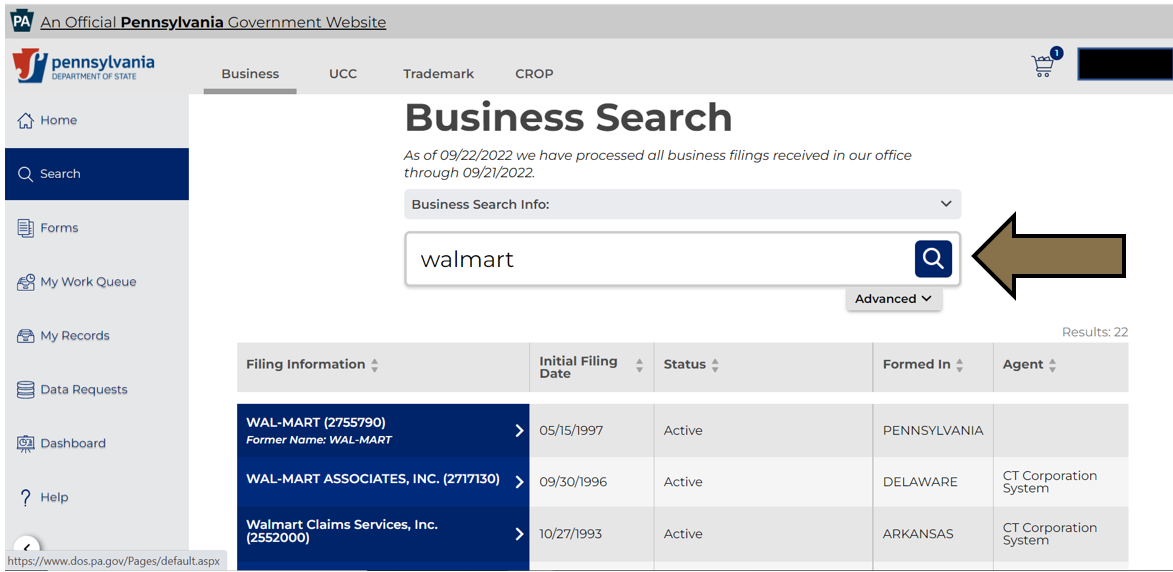
Step 4: Type in the business name and click the Search icon.
Step 5: Click your business name in the search results.

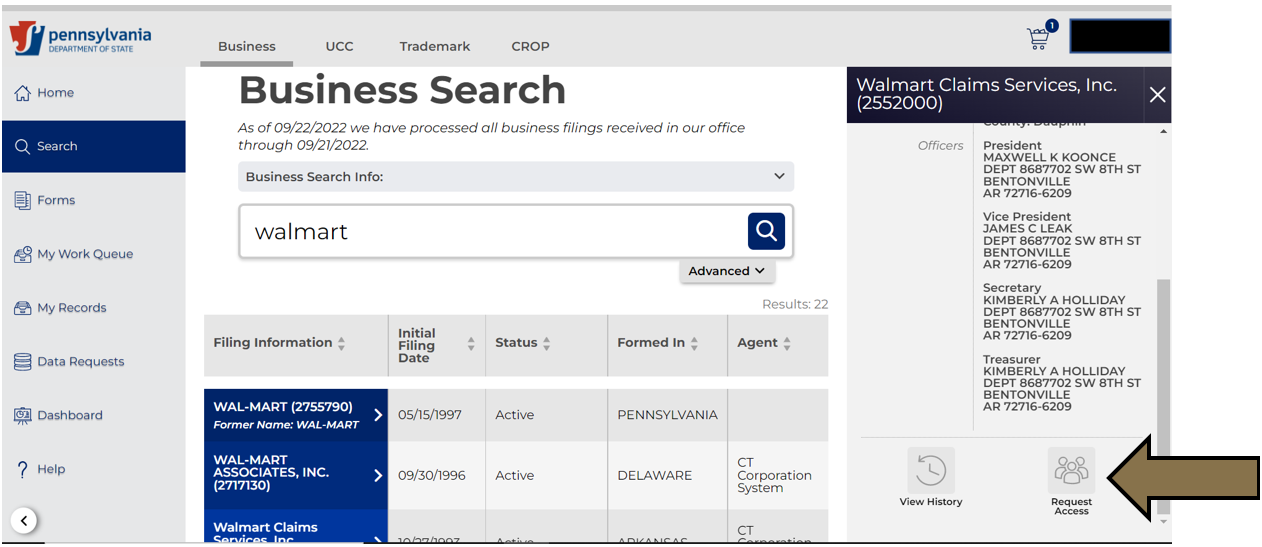
Step 6: On the right, in the menu, scroll down and click the Request Access button. NOTE: If you already have access to the business this option will say Manage User Access. In that case, please skip to step 10.
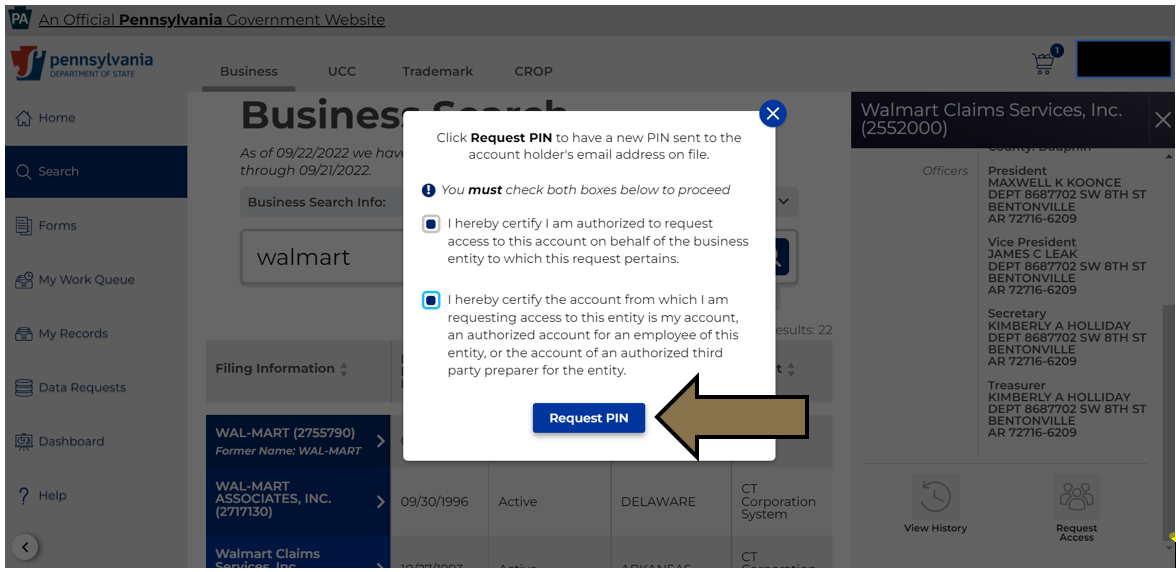
Step 7: Check the two verification boxes and click the Request Pin button. NOTE: The PIN will be a combination of letters and numbers sent to the email that is associated with your Business Hub login account.
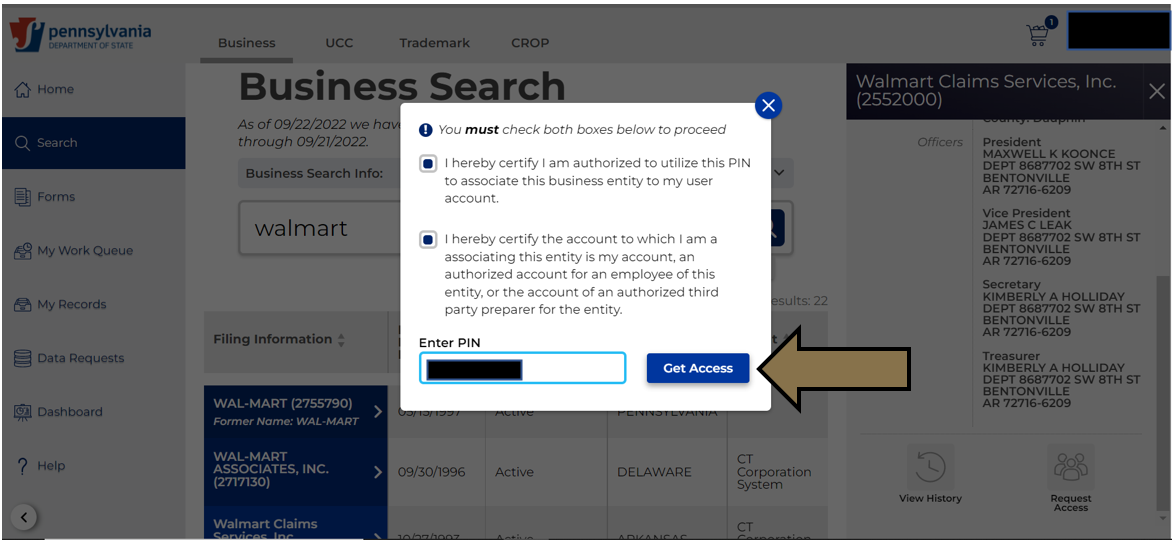
Step 8: Get the PIN from your email, click the Input PIN Now button, enter your PIN, and click the Get Access button.
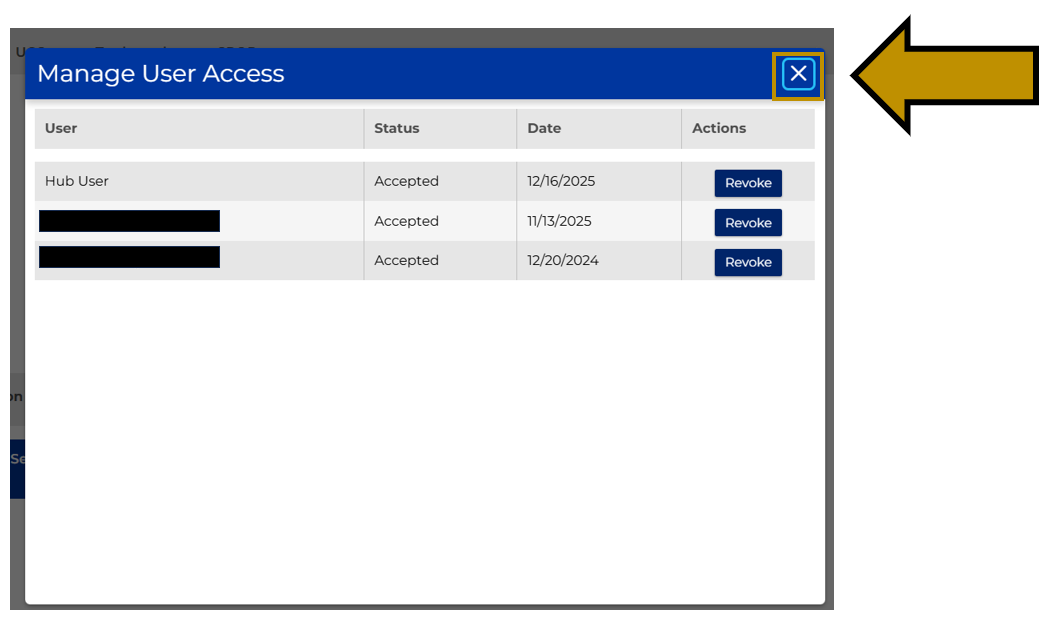
Step 9: After successfully entering your PIN you will see the following screen. Click the “X” button to close the Manage User Access screen.
Step 10: Click the File Amendment button to select the necessary form and follow the screen prompts to complete and pay electronically.

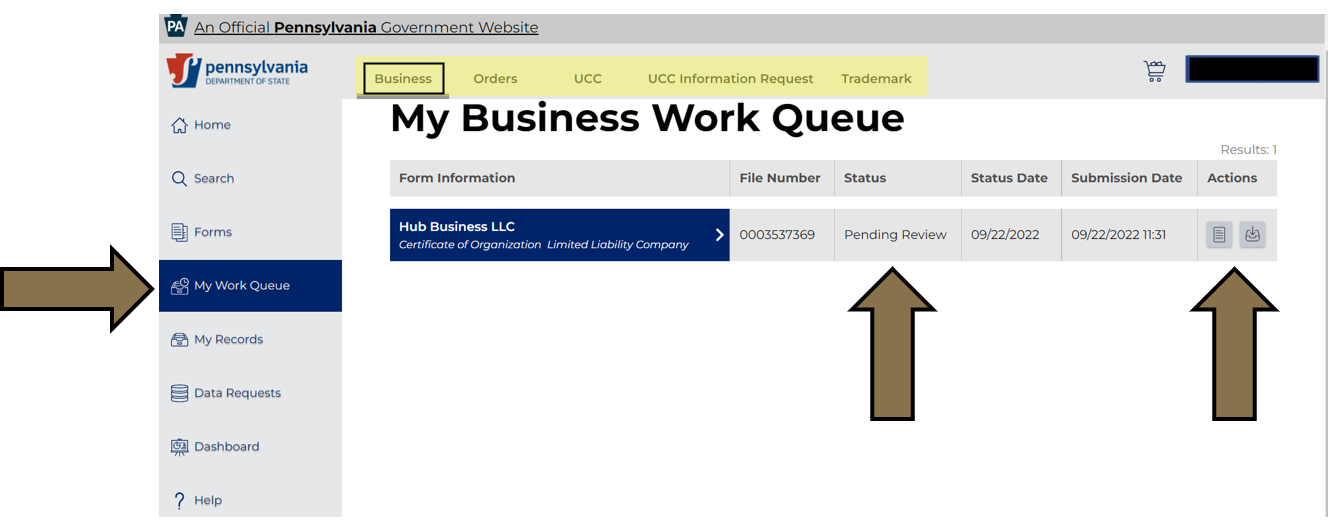
Step 11: Once submitted, you can view the status of your filing and access the processed documents within My Work Queue. NOTE: Make sure you check My Business Work Queue by clicking Business in the submenu at the top (highlighted in yellow below).
Revised 1/14/2026